SLIDECAMP BLOG
Published
Published
PowerPoint Slide Management: How Enterprise Teams Stay Aligned in 2026
PowerPoint Slide Management: How Enterprise Teams Stay Aligned in 2026
How enterprise teams manage PowerPoint slides at scale: search, version control, brand governance, and the four approaches that actually work.

A sales rep sends a quick Slack: "Anyone have the latest pricing slide?" Three replies land within minutes. All three files are different. Marketing cannot tell which one is approved. One still uses last quarter's logo. Another has old positioning. A third has the right design but the wrong numbers. That is not just a messy workflow. It is a slide management problem.
PowerPoint was built for one person making one deck. It was never designed for teams that reuse the same slides dozens of times across dozens of presentations. PowerPoint slide management becomes urgent the moment your team starts reusing content across sales decks, proposal packs, customer updates, and board presentations. Most teams discover this too late. They assume folders, templates, and good intentions will be enough. Then slide chaos shows up. This article explains what slide management is, why powerpoint slide management breaks down at scale, and the four ways teams actually fix it.
What Is PowerPoint Slide Management?
Put simply, PowerPoint slide management is the practice of organizing, governing, and reusing individual slides, not whole decks, across a team. It treats every slide as a controlled asset: searchable, on-brand, version-controlled, and updatable from a single source.
That is different from slide creation. Tools like Canva, Beautiful.ai, and Pitch help you design new slides. Slide management starts after the slide already exists. It is also different from presentation management, which is the broader job of managing whole decks, templates, workflows, sharing, and performance. In most teams, slide management is the layer underneath that makes presentation management actually work. Even G2's presentation management category describes the space in terms of central libraries of slides, templates, and reusable content.
It is also not file management. Putting decks into SharePoint folders, OneDrive, or Google Drive answers one question: where does the file live? It does not answer the harder questions. Which slide is approved? Who owns it? Which version is current? Where else is it being used? That is why deck-level storage never solves slide-level reuse.
The distinction matters because a deck is usually a moment in time. The slides inside it live much longer. Your "pricing" slide, "customer story" slide, "security overview" slide, and "about us" slide get reused again and again. If you manage at the wrong level, your team keeps rebuilding the same content, often from memory, and almost always from the wrong file.
Why Slide Management Breaks Down at Scale
Sales operations feels this first. Your top reps build personal decks by Frankensteining old proposals. The habit works until it does not. Three weeks later, marketing spots last year's positioning in a customer pitch, and now your best reps are also your biggest source of off-brand content.
Marketing sees a different version of the same problem. You roll out a quarterly brand refresh. The new logo is approved. The color tweaks are final. The updated messaging is live. Six weeks later, half the company is still using the old slides because nobody knows where the canonical version lives, and nobody has time for a slide hunt before every meeting.
RFP and proposal teams feel the cost most directly. They need the customer-success case study from the Acme deal, or the exact security slide legal approved in February, or the product overview used in the last winning response. They search five SharePoint folders, two Google Drives, and Slack. They fail to find it. They rebuild it from scratch, which is how old claims, old proof points, and old branding keep coming back.
This is the pattern. Every presentation-heavy team eventually hits slide chaos. At that point, slides management stops being a personal workaround and becomes a team process. If you need to manage PowerPoint slides across a company, the bottleneck is almost never design skill. It is content control.
PowerPoint's native tools do not really close that gap. Microsoft's current Reuse Slides documentation still explains how to import slides from another presentation, but it also states that the inserted slide is simply a copy of the original, and that reuse from cloud files is deprecated while reuse from local files remains available. Native reuse is copy and paste with a nicer button. It is not a live, managed asset model. For the full nuance, see SlideCamp's guide to Reuse Slides.
That missing layer used to be partly covered by SharePoint. Older Microsoft setups had a Slide Library concept. The feature is now discontinued in SharePoint Online, with deprecation tracing back to SharePoint 2013. Microsoft's newer organization asset libraries are useful, but they are for Office templates and image libraries, not for a true slide-level library with search, governance, and propagated updates. If your team is still trying to replace the old behavior with folders alone, the gap is real. SlideCamp has a fuller breakdown of the old SharePoint Slide Library model and what replaced it.
The Four Pillars of Effective Slide Management
If you are evaluating slide management software, these are the four capabilities that matter. Without them, you can store decks, but you still cannot manage presentations cleanly at scale.
A Single Source of Truth
Every high-use slide needs one canonical version. Not five near-identical copies in five folders. Not "final-v2" and "final-v2-new" and "final-v2-use-this-one." One source. One owner. One approved version.
That usually means naming and organizing slides as assets, not as leftovers inside decks. Instead of "Q3-pitch-deck-final-v3.pptx," think "Pricing slide, June 2026, owner: Marketing." When a critical slide changes, the team should know exactly where that source lives.
Search at the Slide Level
Find a slide by what is on it, not which file it lives in. Search "Acme case study" and return every slide tagged with that customer, regardless of which deck contains it. Search "SOC 2" and find the approved slide, no matter which deck it was last used in. File-level search (Windows search, SharePoint full-text) does not do this. Slide-level search is the difference between a folder system and an actual operating system for presentation content.
Governance and Brand Compliance
Good slide management is not just search. It is control. Templates lock the right fonts, colors, and logos. Outdated slides get flagged instead of quietly reused. Permissions reflect reality: marketing approves, sales reuses, and edits to source slides need sign-off.
This is the part teams postpone. It is also the part that saves the most pain later, because off-brand reuse usually starts with one well-meaning person updating the wrong file.
Live Updates That Propagate
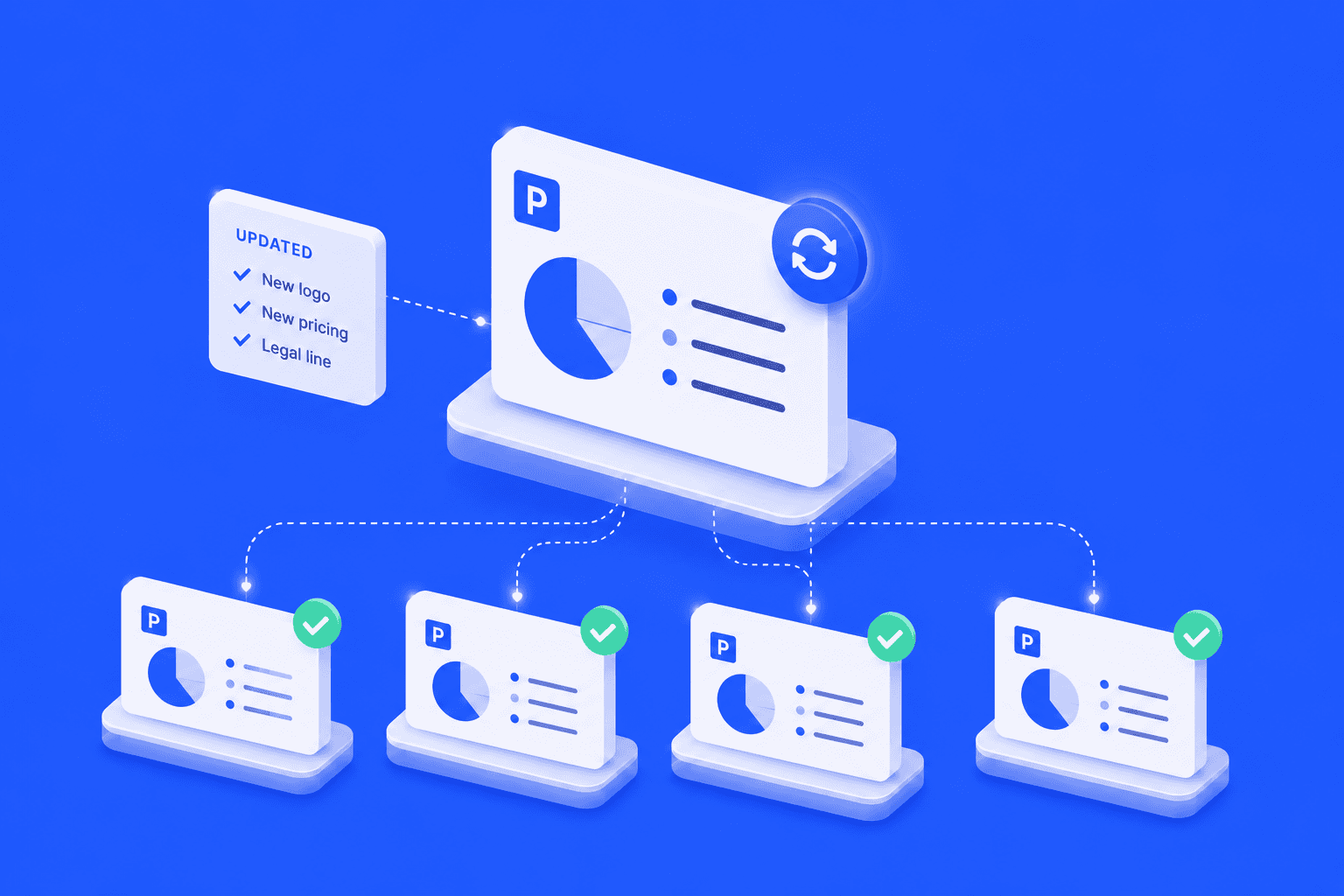
This is the pillar that turns a library into a system. When a source slide changes (new logo, new pricing, new product claim, new legal line), every deck using it can update automatically. Without propagation, every refresh turns into a manual cleanup project. Someone has to find every deck that uses the changed slide and update them one by one.
How Teams Actually Implement Slide Management
Most teams end up in one of four camps. The right fit depends on deck volume, how often content changes, and how much brand control you need.
Shared Drive and Naming Conventions
This is the free option. You put decks in SharePoint, OneDrive, or Google Drive, agree on a naming rule such as TOPIC-OWNER-DATE-VERSION, and try to keep everyone disciplined. The upside is obvious: no new budget, no rollout, no new tool to learn.
The downside is just as obvious. There is no slide-level search, no real version control, no way to tell where a reused slide also appears, and no clean way to push updates into decks already sent around the business. Naming discipline collapses past about 20 contributors. This works best for a small team with a small number of decks and low change frequency. Once content starts moving between sales, marketing, and proposals, it tends to crack.
Best for: Teams with fewer than 10 decks, single team, no brand compliance requirements.
SharePoint Slide Library (Deprecated, Don't Build Here)
This is the one to stop building around. Slide Library is discontinued in SharePoint Online, with deprecation tracing back to SharePoint 2013. PowerPoint's native reuse still exists for local files, but it remains a copy model, not a live linked library. If you are relying on memory of how the old SharePoint flow worked, you are remembering a feature Microsoft did not carry forward. For the full migration story, see SlideCamp's article on SharePoint Slide Library.
Best for: Nobody, going forward.
Brand Asset Management Platforms
Some teams approach slide management through brand asset management platforms. These are digital asset management systems first. Their Office integrations bring approved assets, files, and libraries into Office apps, which is excellent when the main job is governing logos, images, documents, and templates across the business. That makes them strongest for brand teams, not for slide-first sales and proposal workflows. Slide reuse can be done through add-ins or connectors, but it sits inside a broader asset-management model rather than acting as the center of the system.
Best for: Design and brand teams that need to govern templates and digital assets more than reuse individual slides.
Dedicated Slide Library
This is where the fit usually improves for presentation-heavy teams. A dedicated slide library tool lives inside PowerPoint as an add-in and keeps the center of gravity on slide search, version control, approvals, and updates — right inside the app where decks are built.
SlideCamp's slide library and SlideCamp's PowerPoint add-in let teams search indexed slides inside PowerPoint, insert approved content in a couple of clicks, and keep source slides synced across decks with SlideSync. The benefit is operational control. One source of truth, fewer duplicate slides, and less time wasted chasing the "latest" file. For a real-world rollout, see how LA Times manages 450+ decks. If you want to see the workflow live, book a live demo.
Best for: 50+ decks, sales/RFP/marketing teams where brand consistency is required.
Which Slide Management Approach Fits Your Team?
Approach | Slide search? | Version control? | Brand governance? | Live updates? | Cost | Best for |
|---|---|---|---|---|---|---|
Shared drive | No | No | No | No | Free | Fewer than 10 decks |
SharePoint Slide Library | Deprecated | Deprecated | Deprecated | Deprecated | N/A | Skip |
Brand asset management platform | Limited | Manual | Yes | No | $$$$ | Brand teams |
Dedicated slide library (e.g., SlideCamp) | Full | Automatic | Yes | Yes | $$ | 50+ decks, sales and marketing |
That table reflects the way Microsoft and current vendor docs describe these approaches today. Shared drives store files. Brand asset platforms govern assets and templates. Dedicated slide libraries treat the slide itself as the unit of control inside PowerPoint.
Need to find a specific slide in seconds, not minutes? Choose a slide library.
Need brand compliance more than slide reuse? A DAM or brand asset tool may fit better.
Team under 10, slides change rarely, and nobody needs propagation? A shared drive may be enough for now.
Still relying on old SharePoint Slide Library behavior? Plan a migration before the next major brand or pricing update.
FAQ
What is the difference between slide management and presentation management?
Presentation management is the broader practice of managing whole decks, templates, sharing, workflows, and usage. Slide management is the layer underneath that treats individual slides as reusable, governed assets. If you cannot control slides, you cannot manage presentations well for very long.
Does PowerPoint have built-in slide management?
Not in the operational sense most teams need. Microsoft's current Reuse Slides flow still supports reuse from local files, but imported slides are copies of the original and cloud-file reuse is deprecated. SharePoint Slide Library is gone from SharePoint Online, so native Microsoft workflows do not give you a central, slide-first library with search, governance, and propagated updates. Third-party tools fill that gap.
What is the best software for PowerPoint slide management?
The best fit depends on what problem matters most. For teams managing 50 or more decks where sales, marketing, or proposals reuse slides constantly, a dedicated slide library tool that lives inside PowerPoint (such as SlideCamp) is usually the strongest fit. Brand asset management platforms work better when the main priority is governing logos, fonts, and templates across channels rather than slide-level reuse.
How do I manage PowerPoint slides across a team?
Start with the minimum viable operating model. Give every high-use slide one canonical home, assign an owner, define approval rights, and make slides searchable by what is on them, not just by filename. Shared drives can do the first part. They rarely do the last two well enough once reuse becomes daily work.
Is SharePoint Slide Library still available?
No. The feature is discontinued in SharePoint Online, with deprecation tracing back to SharePoint 2013. If your team still depends on the old model, the realistic next step is migration to a third-party slide library or a broader asset stack, depending on your needs.
What is a PowerPoint slide management tool?
A PowerPoint slide management tool is usually a PowerPoint add-in or connected platform that makes individual slides searchable, version-controlled, and centrally governed. It lets your team find the right slide, insert it without opening a stack of old decks, and update outdated content from a single approved source. SlideCamp is one example; the broader category includes both purpose-built slide library tools and document automation platforms with slide-library features.
How do enterprise sales teams manage PowerPoint slides?
Most enterprise sales teams end up using some form of centralized slide library or slide repository that lives inside PowerPoint. Reps need to find approved slides in seconds (case studies, pricing, security), insert them without leaving the deck they are building, and trust that what they pull is the current version. Shared drives technically store the files, but they do not give reps slide-level search, version control, or guardrails against pulling stale content. Sales-heavy organizations usually graduate to a dedicated slide library add-in once proposal volume hits a few decks a week per rep.
Can SharePoint replace a slide library?
No, not in the way most teams hope. The original SharePoint Slide Library feature is discontinued in SharePoint Online. SharePoint can still hold PowerPoint files in document libraries and Microsoft's newer organization asset libraries can host shared templates, but neither offers slide-level search, version control, or automatic propagation of updates into decks already in circulation. Teams that need true PowerPoint slide management almost always pair SharePoint storage with a dedicated slide library tool that runs as a PowerPoint add-in.
How do you keep PowerPoint slides up to date across decks?
The only reliable way is propagated updates from a single source. Maintain one canonical version of each high-use slide in a centralized slide library, push updates from the source, and have every deck that references it pick up the change automatically. Without propagation, you are back to manual cleanup: someone hunts down every deck that uses the changed slide and re-inserts the new version one by one. That is the work PowerPoint version control inside a slide library is designed to remove.
Conclusion
Slide management is a discipline first, a tool second. The teams that treat slides as governed assets rather than random file attachments stop wasting hours hunting and rebuilding. They spend that time on the actual work that wins deals.
If you want to see what that looks like inside PowerPoint, book a live demo of SlideCamp.
A sales rep sends a quick Slack: "Anyone have the latest pricing slide?" Three replies land within minutes. All three files are different. Marketing cannot tell which one is approved. One still uses last quarter's logo. Another has old positioning. A third has the right design but the wrong numbers. That is not just a messy workflow. It is a slide management problem.
PowerPoint was built for one person making one deck. It was never designed for teams that reuse the same slides dozens of times across dozens of presentations. PowerPoint slide management becomes urgent the moment your team starts reusing content across sales decks, proposal packs, customer updates, and board presentations. Most teams discover this too late. They assume folders, templates, and good intentions will be enough. Then slide chaos shows up. This article explains what slide management is, why powerpoint slide management breaks down at scale, and the four ways teams actually fix it.
What Is PowerPoint Slide Management?
Put simply, PowerPoint slide management is the practice of organizing, governing, and reusing individual slides, not whole decks, across a team. It treats every slide as a controlled asset: searchable, on-brand, version-controlled, and updatable from a single source.
That is different from slide creation. Tools like Canva, Beautiful.ai, and Pitch help you design new slides. Slide management starts after the slide already exists. It is also different from presentation management, which is the broader job of managing whole decks, templates, workflows, sharing, and performance. In most teams, slide management is the layer underneath that makes presentation management actually work. Even G2's presentation management category describes the space in terms of central libraries of slides, templates, and reusable content.
It is also not file management. Putting decks into SharePoint folders, OneDrive, or Google Drive answers one question: where does the file live? It does not answer the harder questions. Which slide is approved? Who owns it? Which version is current? Where else is it being used? That is why deck-level storage never solves slide-level reuse.
The distinction matters because a deck is usually a moment in time. The slides inside it live much longer. Your "pricing" slide, "customer story" slide, "security overview" slide, and "about us" slide get reused again and again. If you manage at the wrong level, your team keeps rebuilding the same content, often from memory, and almost always from the wrong file.
Why Slide Management Breaks Down at Scale
Sales operations feels this first. Your top reps build personal decks by Frankensteining old proposals. The habit works until it does not. Three weeks later, marketing spots last year's positioning in a customer pitch, and now your best reps are also your biggest source of off-brand content.
Marketing sees a different version of the same problem. You roll out a quarterly brand refresh. The new logo is approved. The color tweaks are final. The updated messaging is live. Six weeks later, half the company is still using the old slides because nobody knows where the canonical version lives, and nobody has time for a slide hunt before every meeting.
RFP and proposal teams feel the cost most directly. They need the customer-success case study from the Acme deal, or the exact security slide legal approved in February, or the product overview used in the last winning response. They search five SharePoint folders, two Google Drives, and Slack. They fail to find it. They rebuild it from scratch, which is how old claims, old proof points, and old branding keep coming back.
This is the pattern. Every presentation-heavy team eventually hits slide chaos. At that point, slides management stops being a personal workaround and becomes a team process. If you need to manage PowerPoint slides across a company, the bottleneck is almost never design skill. It is content control.
PowerPoint's native tools do not really close that gap. Microsoft's current Reuse Slides documentation still explains how to import slides from another presentation, but it also states that the inserted slide is simply a copy of the original, and that reuse from cloud files is deprecated while reuse from local files remains available. Native reuse is copy and paste with a nicer button. It is not a live, managed asset model. For the full nuance, see SlideCamp's guide to Reuse Slides.
That missing layer used to be partly covered by SharePoint. Older Microsoft setups had a Slide Library concept. The feature is now discontinued in SharePoint Online, with deprecation tracing back to SharePoint 2013. Microsoft's newer organization asset libraries are useful, but they are for Office templates and image libraries, not for a true slide-level library with search, governance, and propagated updates. If your team is still trying to replace the old behavior with folders alone, the gap is real. SlideCamp has a fuller breakdown of the old SharePoint Slide Library model and what replaced it.
The Four Pillars of Effective Slide Management
If you are evaluating slide management software, these are the four capabilities that matter. Without them, you can store decks, but you still cannot manage presentations cleanly at scale.
A Single Source of Truth
Every high-use slide needs one canonical version. Not five near-identical copies in five folders. Not "final-v2" and "final-v2-new" and "final-v2-use-this-one." One source. One owner. One approved version.
That usually means naming and organizing slides as assets, not as leftovers inside decks. Instead of "Q3-pitch-deck-final-v3.pptx," think "Pricing slide, June 2026, owner: Marketing." When a critical slide changes, the team should know exactly where that source lives.
Search at the Slide Level
Find a slide by what is on it, not which file it lives in. Search "Acme case study" and return every slide tagged with that customer, regardless of which deck contains it. Search "SOC 2" and find the approved slide, no matter which deck it was last used in. File-level search (Windows search, SharePoint full-text) does not do this. Slide-level search is the difference between a folder system and an actual operating system for presentation content.
Governance and Brand Compliance
Good slide management is not just search. It is control. Templates lock the right fonts, colors, and logos. Outdated slides get flagged instead of quietly reused. Permissions reflect reality: marketing approves, sales reuses, and edits to source slides need sign-off.
This is the part teams postpone. It is also the part that saves the most pain later, because off-brand reuse usually starts with one well-meaning person updating the wrong file.
Live Updates That Propagate
This is the pillar that turns a library into a system. When a source slide changes (new logo, new pricing, new product claim, new legal line), every deck using it can update automatically. Without propagation, every refresh turns into a manual cleanup project. Someone has to find every deck that uses the changed slide and update them one by one.
How Teams Actually Implement Slide Management
Most teams end up in one of four camps. The right fit depends on deck volume, how often content changes, and how much brand control you need.
Shared Drive and Naming Conventions
This is the free option. You put decks in SharePoint, OneDrive, or Google Drive, agree on a naming rule such as TOPIC-OWNER-DATE-VERSION, and try to keep everyone disciplined. The upside is obvious: no new budget, no rollout, no new tool to learn.
The downside is just as obvious. There is no slide-level search, no real version control, no way to tell where a reused slide also appears, and no clean way to push updates into decks already sent around the business. Naming discipline collapses past about 20 contributors. This works best for a small team with a small number of decks and low change frequency. Once content starts moving between sales, marketing, and proposals, it tends to crack.
Best for: Teams with fewer than 10 decks, single team, no brand compliance requirements.
SharePoint Slide Library (Deprecated, Don't Build Here)
This is the one to stop building around. Slide Library is discontinued in SharePoint Online, with deprecation tracing back to SharePoint 2013. PowerPoint's native reuse still exists for local files, but it remains a copy model, not a live linked library. If you are relying on memory of how the old SharePoint flow worked, you are remembering a feature Microsoft did not carry forward. For the full migration story, see SlideCamp's article on SharePoint Slide Library.
Best for: Nobody, going forward.
Brand Asset Management Platforms
Some teams approach slide management through brand asset management platforms. These are digital asset management systems first. Their Office integrations bring approved assets, files, and libraries into Office apps, which is excellent when the main job is governing logos, images, documents, and templates across the business. That makes them strongest for brand teams, not for slide-first sales and proposal workflows. Slide reuse can be done through add-ins or connectors, but it sits inside a broader asset-management model rather than acting as the center of the system.
Best for: Design and brand teams that need to govern templates and digital assets more than reuse individual slides.
Dedicated Slide Library
This is where the fit usually improves for presentation-heavy teams. A dedicated slide library tool lives inside PowerPoint as an add-in and keeps the center of gravity on slide search, version control, approvals, and updates — right inside the app where decks are built.
SlideCamp's slide library and SlideCamp's PowerPoint add-in let teams search indexed slides inside PowerPoint, insert approved content in a couple of clicks, and keep source slides synced across decks with SlideSync. The benefit is operational control. One source of truth, fewer duplicate slides, and less time wasted chasing the "latest" file. For a real-world rollout, see how LA Times manages 450+ decks. If you want to see the workflow live, book a live demo.
Best for: 50+ decks, sales/RFP/marketing teams where brand consistency is required.
Which Slide Management Approach Fits Your Team?
Approach | Slide search? | Version control? | Brand governance? | Live updates? | Cost | Best for |
|---|---|---|---|---|---|---|
Shared drive | No | No | No | No | Free | Fewer than 10 decks |
SharePoint Slide Library | Deprecated | Deprecated | Deprecated | Deprecated | N/A | Skip |
Brand asset management platform | Limited | Manual | Yes | No | $$$$ | Brand teams |
Dedicated slide library (e.g., SlideCamp) | Full | Automatic | Yes | Yes | $$ | 50+ decks, sales and marketing |
That table reflects the way Microsoft and current vendor docs describe these approaches today. Shared drives store files. Brand asset platforms govern assets and templates. Dedicated slide libraries treat the slide itself as the unit of control inside PowerPoint.
Need to find a specific slide in seconds, not minutes? Choose a slide library.
Need brand compliance more than slide reuse? A DAM or brand asset tool may fit better.
Team under 10, slides change rarely, and nobody needs propagation? A shared drive may be enough for now.
Still relying on old SharePoint Slide Library behavior? Plan a migration before the next major brand or pricing update.
FAQ
What is the difference between slide management and presentation management?
Presentation management is the broader practice of managing whole decks, templates, sharing, workflows, and usage. Slide management is the layer underneath that treats individual slides as reusable, governed assets. If you cannot control slides, you cannot manage presentations well for very long.
Does PowerPoint have built-in slide management?
Not in the operational sense most teams need. Microsoft's current Reuse Slides flow still supports reuse from local files, but imported slides are copies of the original and cloud-file reuse is deprecated. SharePoint Slide Library is gone from SharePoint Online, so native Microsoft workflows do not give you a central, slide-first library with search, governance, and propagated updates. Third-party tools fill that gap.
What is the best software for PowerPoint slide management?
The best fit depends on what problem matters most. For teams managing 50 or more decks where sales, marketing, or proposals reuse slides constantly, a dedicated slide library tool that lives inside PowerPoint (such as SlideCamp) is usually the strongest fit. Brand asset management platforms work better when the main priority is governing logos, fonts, and templates across channels rather than slide-level reuse.
How do I manage PowerPoint slides across a team?
Start with the minimum viable operating model. Give every high-use slide one canonical home, assign an owner, define approval rights, and make slides searchable by what is on them, not just by filename. Shared drives can do the first part. They rarely do the last two well enough once reuse becomes daily work.
Is SharePoint Slide Library still available?
No. The feature is discontinued in SharePoint Online, with deprecation tracing back to SharePoint 2013. If your team still depends on the old model, the realistic next step is migration to a third-party slide library or a broader asset stack, depending on your needs.
What is a PowerPoint slide management tool?
A PowerPoint slide management tool is usually a PowerPoint add-in or connected platform that makes individual slides searchable, version-controlled, and centrally governed. It lets your team find the right slide, insert it without opening a stack of old decks, and update outdated content from a single approved source. SlideCamp is one example; the broader category includes both purpose-built slide library tools and document automation platforms with slide-library features.
How do enterprise sales teams manage PowerPoint slides?
Most enterprise sales teams end up using some form of centralized slide library or slide repository that lives inside PowerPoint. Reps need to find approved slides in seconds (case studies, pricing, security), insert them without leaving the deck they are building, and trust that what they pull is the current version. Shared drives technically store the files, but they do not give reps slide-level search, version control, or guardrails against pulling stale content. Sales-heavy organizations usually graduate to a dedicated slide library add-in once proposal volume hits a few decks a week per rep.
Can SharePoint replace a slide library?
No, not in the way most teams hope. The original SharePoint Slide Library feature is discontinued in SharePoint Online. SharePoint can still hold PowerPoint files in document libraries and Microsoft's newer organization asset libraries can host shared templates, but neither offers slide-level search, version control, or automatic propagation of updates into decks already in circulation. Teams that need true PowerPoint slide management almost always pair SharePoint storage with a dedicated slide library tool that runs as a PowerPoint add-in.
How do you keep PowerPoint slides up to date across decks?
The only reliable way is propagated updates from a single source. Maintain one canonical version of each high-use slide in a centralized slide library, push updates from the source, and have every deck that references it pick up the change automatically. Without propagation, you are back to manual cleanup: someone hunts down every deck that uses the changed slide and re-inserts the new version one by one. That is the work PowerPoint version control inside a slide library is designed to remove.
Conclusion
Slide management is a discipline first, a tool second. The teams that treat slides as governed assets rather than random file attachments stop wasting hours hunting and rebuilding. They spend that time on the actual work that wins deals.
If you want to see what that looks like inside PowerPoint, book a live demo of SlideCamp.