SLIDECAMP BLOG
Published
Published
Reuse Slides in PowerPoint: What Changed and What to Use Instead [2026]
Reuse Slides in PowerPoint: What Changed and What to Use Instead [2026]
Microsoft retired the Reuse Slides feature in January 2026. Learn what happened, why the pane disappeared, how to fix common issues, and the 5 best alternatives for reusing slides in PowerPoint.
If you landed here after searching "reuse slides powerpoint," you're probably in the same spot as a lot of sales reps and marketing managers right now: you opened PowerPoint, went to grab a slide from an old deck, and the button you relied on is missing. Cue the scramble. Old decks. Random SharePoint folders. That one email attachment from last quarter. Then you paste everything together and end up with a Frankenstein deck that looks off-brand by slide 6.
This post covers the full story, not just the "it's gone" headline. You'll get:
What Reuse Slides actually was (and how the Reuse Slides pane worked)
What Microsoft changed and when
How to troubleshoot if you still have it (or if it's half-working)
Five practical ways to reuse slides now, including Copilot and slide libraries
You'll also get a simple decision framework at the end, because the best method depends on what you're trying to do: move a slide from A to B, or reliably find the right slide in the first place.
What Was the Reuse Slides Feature?
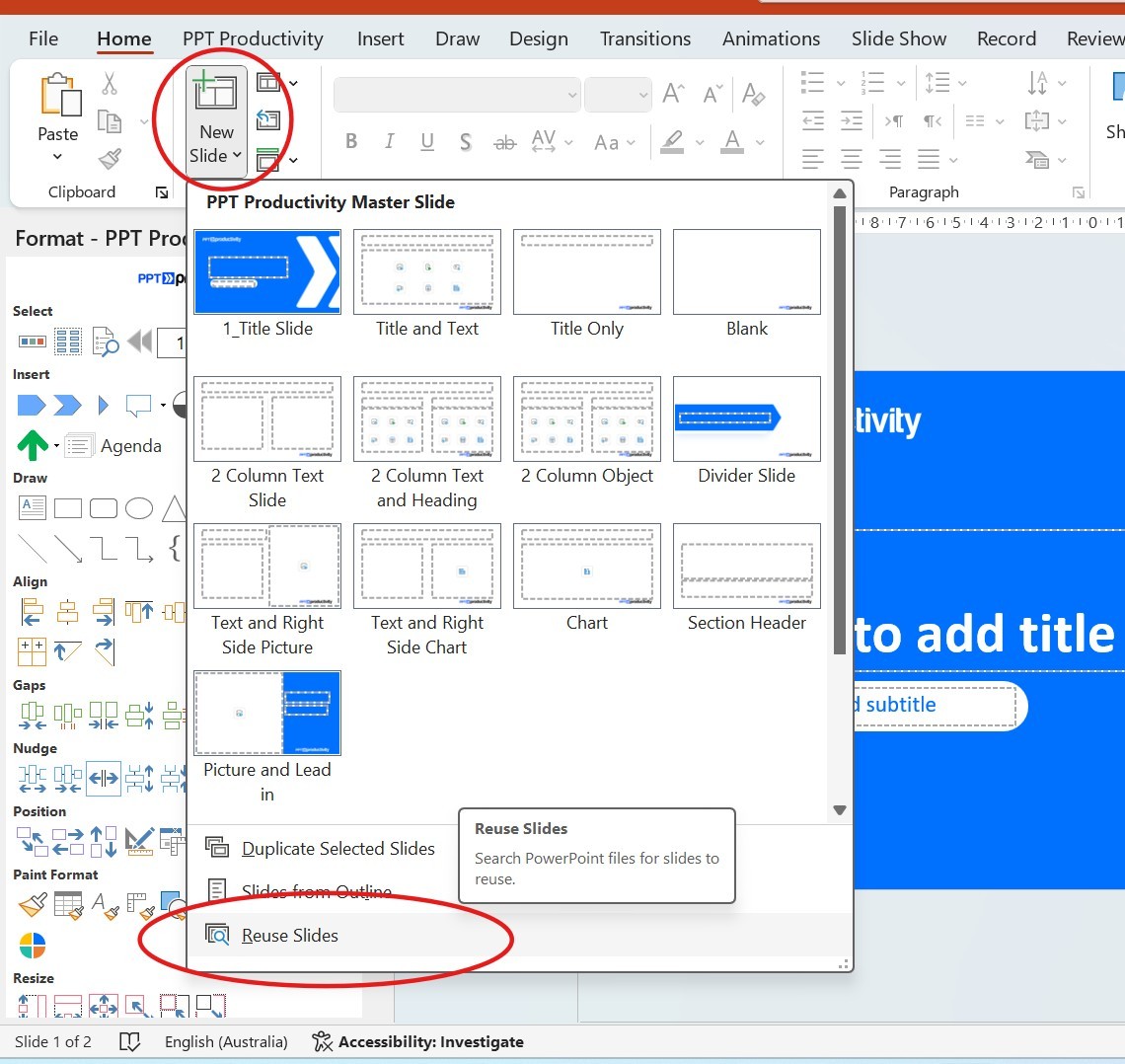
Reuse Slides was PowerPoint's built-in "grab slides from another deck without opening it" workflow. It opened a right-side task pane where you could browse a presentation, preview slides, and insert one slide or the entire set. No extra windows. No hunting through thumbnails in a second file.
This mattered for real workflows: sales teams reusing a pricing table or a case study slide, marketing teams reusing "approved" product slides, and trainers updating a deck without rebuilding the same agenda slide again and again.
The path was Home > New Slide (dropdown) > Reuse Slides (near the bottom of the menu). Once you clicked it, the Reuse Slides pane opened on the right side of the screen. From there you could browse to a source deck, preview thumbnails, and click a slide to insert it or right-click to insert everything. That "insert everything" option was handy when pulling in a full section from a template deck, then deleting what you didn't need.
The Keep Source Formatting checkbox at the bottom of the pane decided whether your slide stayed "as-is" or got themed into your current deck. Checked: the slide keeps its original fonts, colors, and backgrounds. Unchecked: the slide inherits styling from the destination deck. This was the difference between "approved, on-brand slide" and "why did the font change to Calibri and the logo move."
Not everyone saw the same pane. Users on Office ProPlus or Microsoft 365 Business plans got a search bar powered by SharePoint and OneDrive. You could search for presentations by keyword rather than manually browsing folders. If you ever wondered why your colleague could "search for slides" and you could only browse files, that's why. Business accounts got search. Personal accounts got file browsing.
Microsoft Retired Reuse Slides. Here's What Happened
This wasn't a rumor or a quiet UI change. Microsoft communicated, rolled out, and completed the retirement.
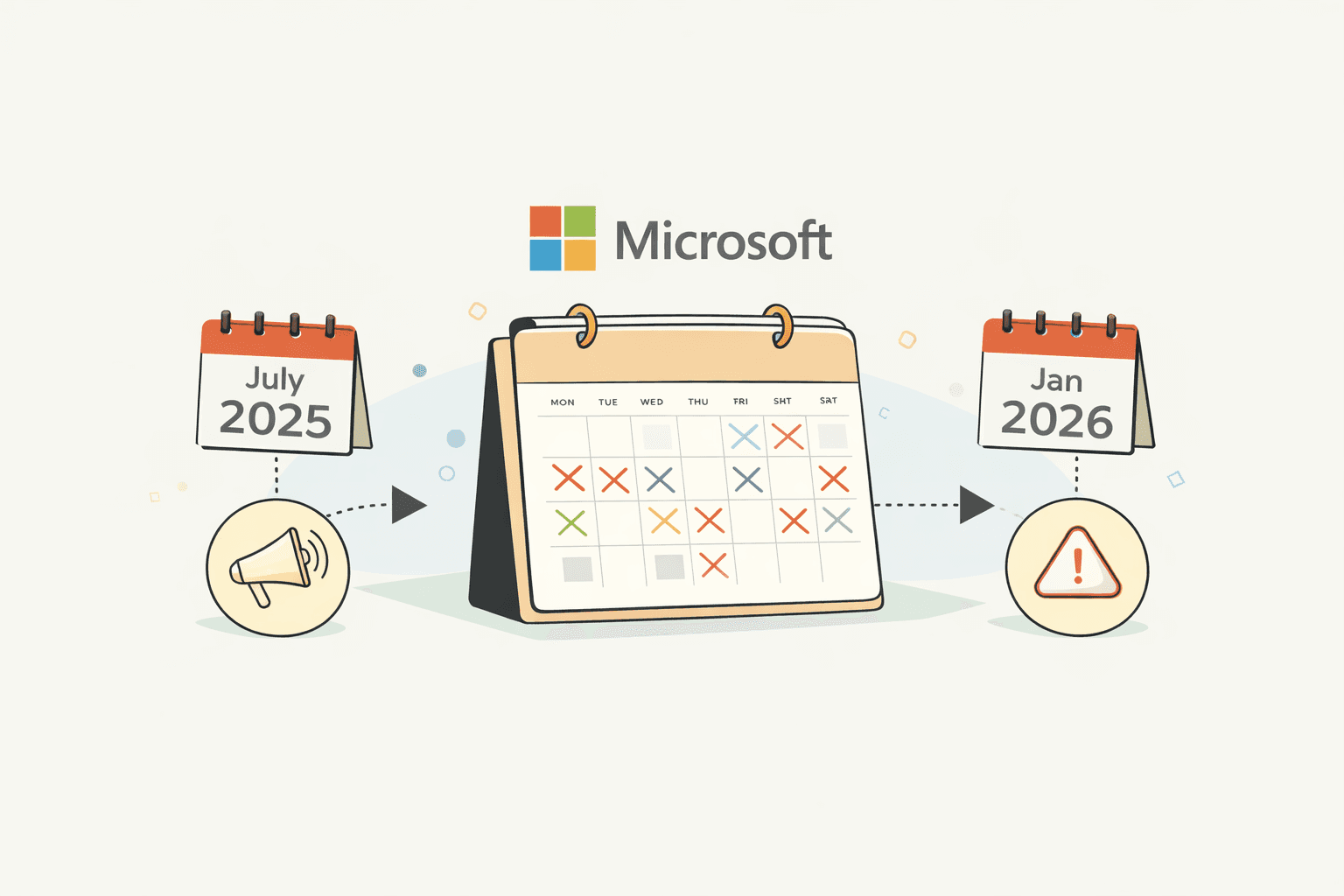
Microsoft first announced the retirement in mid-2025 via the Microsoft 365 Admin Center (Message ID MC1111178). The ribbon button was scheduled for removal by July 31, 2025. A broader rollout followed through late 2025, with the feature fully removed in January 2026. The University of Toronto's IT department published the timeline based on Microsoft's communications: retirement process beginning in December 2025, fully removed in January 2026. If your PowerPoint updated over that window, the command disappeared.
Which versions are affected
Microsoft 365 (desktop, Windows and Mac): affected. The command was removed from the ribbon.
PowerPoint for the web: also affected. Removed on the same timeline.
Perpetual licenses (Office 2021 / Office 2024): not affected. These versions don't receive feature removals. Office Watch confirmed the retirement applies to Microsoft 365 apps and the web, while perpetual license versions keep the feature.
This is why two people can be "on PowerPoint" and have totally different menus.
Why Microsoft did it
Microsoft's stated reason was that Reuse Slides "partially duplicates other existing ways to reuse slides," so it was removed to reduce redundancy. That phrasing appeared in the Admin Center messaging and was repeated by moderators in the Microsoft Q&A forums.
The part everyone actually cares about: was this about pushing Copilot? Microsoft did not publicly frame the retirement as a Copilot replacement. The official reason was redundancy. But the direction of travel is hard to ignore. Microsoft has built Copilot features that directly touch the old Reuse Slides use case: Add a slide from a file with Copilot and Create a presentation from existing files. PowerPoint specialists have predicted Microsoft will point users toward Copilot as the replacement pattern, even while warning that AI lacks governance and can return the wrong version.
The honest read:
Microsoft removed Reuse Slides because they considered it overlapping.
Microsoft is investing in file-reuse workflows through Copilot.
If you relied on Reuse Slides for cross-deck workflows, you need a new system, not a new button.
What this means for teams
For individuals, this is annoying. For teams, it's expensive.
Reuse Slides wasn't just convenience. It was a thin layer of control over slide chaos: "Which deck has the latest slide?" "Is this the approved version?" "Why does this look off-brand when I paste it?"
Microsoft's suggested workarounds are essentially: copy/paste slides between presentations, or duplicate presentations. Those work, but they don't solve search, version control, or brand consistency at scale.
Still Have Reuse Slides? Common Problems and Fixes
Not everyone lost Reuse Slides at the same moment. Some teams have mixed installs: Microsoft 365 on one machine, Office 2024 perpetual on another. If you're dealing with "powerpoint reuse slides not working," here are the most common causes and fixes worth trying.
Feature removed after an Office update. This is the most likely cause in 2026. If you were on Microsoft 365 and updated PowerPoint around December 2025 to January 2026, the button was retired. There is no admin control to retain or re-enable it. Check your version: File > Account > About PowerPoint. If the build is from late 2025 or 2026, the feature has been retired by design.
Using a personal Microsoft account. Before the retirement, Reuse Slides had a reliability gap between consumer and business accounts. Office Watch documented a "Sorry, something went wrong" error that appeared mainly for non-business users. The workaround: switch from a personal login to a work or school account.
Network or firewall blocking SharePoint/OneDrive. The Reuse Slides pane connected to SharePoint and OneDrive for file browsing and search. Corporate networks with strict firewall settings can block these connections, resulting in a spinning loading wheel or "Search is unavailable."
"Something went wrong" error. This error has been documented for years. If PowerPoint is stuck in a bad state with cloud-connected features, clear the Office document cache: close all Office apps, go to File > Options > Save > Cache Settings, click Delete cached files, and restart PowerPoint.
On Windows, you can also manually delete the cache at \Microsoft\Office\16.0\Wef\.
"Where is the Reuse Slides pane in PowerPoint?" If you can't find it at all, check whether you're on Microsoft 365 and up to date. The retirement completed in January 2026. On those builds, there is nothing to turn back on. The keyboard shortcut Alt+H, I, R used to open the Reuse Slides pane. On Microsoft 365, this shortcut no longer works. If you're on a perpetual license, the pane should still be at Home > New Slide > Reuse Slides.
5 Ways to Reuse Slides Without the Reuse Slides Pane
Even with Reuse Slides gone, you can still reuse slides. The difference is friction. Reuse Slides gave you a browse-and-insert workflow inside one window. Without it, you're choosing between manual transfer methods, AI-assisted creation, or a dedicated library approach.
1. Copy and Paste Between Open Presentations
Open both .pptx files. In the source deck, select slides in the left thumbnail pane. Copy (Ctrl+C), switch to your destination deck, paste (Ctrl+V).
This works for one-off slide grabs when you already know which file to open. The catch: no version control. If someone updated that source slide last week, you might be pasting an old version and not know it. Formatting shifts unpredictably depending on the theme mismatch between decks. This method is fine when you're moving a slide you already have in front of you. It falls apart when you're trying to find the slide.
2. Drag and Drop (Side-by-Side Windows)
Go to View > Arrange All in PowerPoint to tile your windows. Then drag slide thumbnails from one deck's panel directly into the other.
This works for small teams moving a handful of slides between two decks. The catch: same version and brand governance problems as copy-paste. At any scale beyond a few slides, it gets unwieldy fast.
3. Save Individual Slides as Templates
Save specific slides as .potx template files in a shared folder on SharePoint or OneDrive. When someone needs a slide, they open the template and copy from there.
This works for designers maintaining a fixed set of master slides. The catch: no search, no preview, no way to know which folder holds the latest version. This works at small scale and breaks down when your team has more than 20 or 30 templates, or when slides change frequently.
4. Microsoft Copilot (If You Have It)
Copilot can reference files when building a presentation. You describe the slide you're looking for, and Copilot attempts to find and insert relevant content. Two relevant features: Add a slide from a file and Create a presentation from existing files.
This works for individual contributors who already have a Copilot license and want to explore content from known files. The catch: Microsoft 365 Copilot costs $30 per user per month (annual billing). Even then, the results are inconsistent. Copilot suggests content, but you still need to verify it's the right version. It doesn't solve brand governance. There's no enforcement of which slides are approved for use. Copilot is useful for drafting and remixing. It's not a clean substitute for "approved slide reuse" on its own.
5. Use a Dedicated Slide Library
A slide library indexes every slide your team owns and makes them searchable from inside PowerPoint. You type a keyword, see thumbnails, and insert directly into your open deck. No file browsing, no digging through SharePoint folders.
The difference that matters most: when a slide is updated in the library, everyone's next deck pulls the current version. Sales reps stop sending decks with the wrong pricing. Marketing managers stop resending the updated case study.
SlideCamp's PowerPoint add-in works this way. Your team searches from the ribbon, finds approved on-brand slides, and inserts them in one click. SlideSync keeps versions aligned by updating slides across decks. When a slide changes, teams get alerts that their deck contains outdated content.
The LA Times uses this approach to manage 450+ decks for 150+ sales reps without slide chaos.
Which Option Is Right for Your Team?
The right answer depends on one question: do you need to find a specific slide, or do you just need to move a slide from one file to another? Manual methods handle the second job. They collapse on the first.

Method | Search? | Version control? | Brand governance? | Cost | Best for |
|---|---|---|---|---|---|
Copy/paste | No | No | No | Free | One-off quick grab |
Drag and drop | No | No | No | Free | Small teams, few decks |
Saved templates | No | Manual | Partial | Free | Designers maintaining a template set |
Copilot | AI search | No | No | $30/user/mo | Individuals exploring content |
Slide library (e.g. SlideCamp) | Full-text | Automatic | Yes | From $15/user/mo | Teams with 50+ decks |
Most teams graduate through these options as they grow. Copy-paste works for a two-person startup. Saved templates work for a solo designer. The moment you have a sales team pulling from a shared deck library, or a marketing team responsible for keeping 50+ presentations current, you need search and version control.
FAQ
Can I still use Reuse Slides in PowerPoint?
Only on perpetual licenses (Office 2021 and Office 2024). Microsoft 365 subscribers on Windows, Mac, and the web version lost the feature in January 2026. There is no way for admins to re-enable it.
What is the keyboard shortcut for Reuse Slides?
Alt+H, I, R previously opened the Reuse Slides pane. This shortcut no longer works on Microsoft 365 as of early 2026.
Does Reuse Slides work in PowerPoint Online?
It did until January 2026. Microsoft removed it from the web version at the same time as the desktop apps.
What replaced Reuse Slides in PowerPoint?
Microsoft hasn't provided a direct replacement. Their official guidance points users toward copying and pasting between open presentations or using Copilot. Third-party slide libraries like SlideCamp offer a more complete solution, with full-text search and version control built into the PowerPoint ribbon.
How do I reuse slides across my team's presentations?
The most reliable method now is a slide library tool that indexes all your slides and makes them searchable from inside PowerPoint. You search by keyword, preview thumbnails, and insert directly into your open deck. This replicates the browse-and-insert workflow that Reuse Slides provided, and adds version control and brand governance on top. Book a live demo to see how SlideCamp handles this.
If you landed here after searching "reuse slides powerpoint," you're probably in the same spot as a lot of sales reps and marketing managers right now: you opened PowerPoint, went to grab a slide from an old deck, and the button you relied on is missing. Cue the scramble. Old decks. Random SharePoint folders. That one email attachment from last quarter. Then you paste everything together and end up with a Frankenstein deck that looks off-brand by slide 6.
This post covers the full story, not just the "it's gone" headline. You'll get:
What Reuse Slides actually was (and how the Reuse Slides pane worked)
What Microsoft changed and when
How to troubleshoot if you still have it (or if it's half-working)
Five practical ways to reuse slides now, including Copilot and slide libraries
You'll also get a simple decision framework at the end, because the best method depends on what you're trying to do: move a slide from A to B, or reliably find the right slide in the first place.
What Was the Reuse Slides Feature?
Reuse Slides was PowerPoint's built-in "grab slides from another deck without opening it" workflow. It opened a right-side task pane where you could browse a presentation, preview slides, and insert one slide or the entire set. No extra windows. No hunting through thumbnails in a second file.
This mattered for real workflows: sales teams reusing a pricing table or a case study slide, marketing teams reusing "approved" product slides, and trainers updating a deck without rebuilding the same agenda slide again and again.
The path was Home > New Slide (dropdown) > Reuse Slides (near the bottom of the menu). Once you clicked it, the Reuse Slides pane opened on the right side of the screen. From there you could browse to a source deck, preview thumbnails, and click a slide to insert it or right-click to insert everything. That "insert everything" option was handy when pulling in a full section from a template deck, then deleting what you didn't need.
The Keep Source Formatting checkbox at the bottom of the pane decided whether your slide stayed "as-is" or got themed into your current deck. Checked: the slide keeps its original fonts, colors, and backgrounds. Unchecked: the slide inherits styling from the destination deck. This was the difference between "approved, on-brand slide" and "why did the font change to Calibri and the logo move."
Not everyone saw the same pane. Users on Office ProPlus or Microsoft 365 Business plans got a search bar powered by SharePoint and OneDrive. You could search for presentations by keyword rather than manually browsing folders. If you ever wondered why your colleague could "search for slides" and you could only browse files, that's why. Business accounts got search. Personal accounts got file browsing.
Microsoft Retired Reuse Slides. Here's What Happened
This wasn't a rumor or a quiet UI change. Microsoft communicated, rolled out, and completed the retirement.
Microsoft first announced the retirement in mid-2025 via the Microsoft 365 Admin Center (Message ID MC1111178). The ribbon button was scheduled for removal by July 31, 2025. A broader rollout followed through late 2025, with the feature fully removed in January 2026. The University of Toronto's IT department published the timeline based on Microsoft's communications: retirement process beginning in December 2025, fully removed in January 2026. If your PowerPoint updated over that window, the command disappeared.
Which versions are affected
Microsoft 365 (desktop, Windows and Mac): affected. The command was removed from the ribbon.
PowerPoint for the web: also affected. Removed on the same timeline.
Perpetual licenses (Office 2021 / Office 2024): not affected. These versions don't receive feature removals. Office Watch confirmed the retirement applies to Microsoft 365 apps and the web, while perpetual license versions keep the feature.
This is why two people can be "on PowerPoint" and have totally different menus.
Why Microsoft did it
Microsoft's stated reason was that Reuse Slides "partially duplicates other existing ways to reuse slides," so it was removed to reduce redundancy. That phrasing appeared in the Admin Center messaging and was repeated by moderators in the Microsoft Q&A forums.
The part everyone actually cares about: was this about pushing Copilot? Microsoft did not publicly frame the retirement as a Copilot replacement. The official reason was redundancy. But the direction of travel is hard to ignore. Microsoft has built Copilot features that directly touch the old Reuse Slides use case: Add a slide from a file with Copilot and Create a presentation from existing files. PowerPoint specialists have predicted Microsoft will point users toward Copilot as the replacement pattern, even while warning that AI lacks governance and can return the wrong version.
The honest read:
Microsoft removed Reuse Slides because they considered it overlapping.
Microsoft is investing in file-reuse workflows through Copilot.
If you relied on Reuse Slides for cross-deck workflows, you need a new system, not a new button.
What this means for teams
For individuals, this is annoying. For teams, it's expensive.
Reuse Slides wasn't just convenience. It was a thin layer of control over slide chaos: "Which deck has the latest slide?" "Is this the approved version?" "Why does this look off-brand when I paste it?"
Microsoft's suggested workarounds are essentially: copy/paste slides between presentations, or duplicate presentations. Those work, but they don't solve search, version control, or brand consistency at scale.
Still Have Reuse Slides? Common Problems and Fixes
Not everyone lost Reuse Slides at the same moment. Some teams have mixed installs: Microsoft 365 on one machine, Office 2024 perpetual on another. If you're dealing with "powerpoint reuse slides not working," here are the most common causes and fixes worth trying.
Feature removed after an Office update. This is the most likely cause in 2026. If you were on Microsoft 365 and updated PowerPoint around December 2025 to January 2026, the button was retired. There is no admin control to retain or re-enable it. Check your version: File > Account > About PowerPoint. If the build is from late 2025 or 2026, the feature has been retired by design.
Using a personal Microsoft account. Before the retirement, Reuse Slides had a reliability gap between consumer and business accounts. Office Watch documented a "Sorry, something went wrong" error that appeared mainly for non-business users. The workaround: switch from a personal login to a work or school account.
Network or firewall blocking SharePoint/OneDrive. The Reuse Slides pane connected to SharePoint and OneDrive for file browsing and search. Corporate networks with strict firewall settings can block these connections, resulting in a spinning loading wheel or "Search is unavailable."
"Something went wrong" error. This error has been documented for years. If PowerPoint is stuck in a bad state with cloud-connected features, clear the Office document cache: close all Office apps, go to File > Options > Save > Cache Settings, click Delete cached files, and restart PowerPoint.
On Windows, you can also manually delete the cache at \Microsoft\Office\16.0\Wef\.
"Where is the Reuse Slides pane in PowerPoint?" If you can't find it at all, check whether you're on Microsoft 365 and up to date. The retirement completed in January 2026. On those builds, there is nothing to turn back on. The keyboard shortcut Alt+H, I, R used to open the Reuse Slides pane. On Microsoft 365, this shortcut no longer works. If you're on a perpetual license, the pane should still be at Home > New Slide > Reuse Slides.
5 Ways to Reuse Slides Without the Reuse Slides Pane
Even with Reuse Slides gone, you can still reuse slides. The difference is friction. Reuse Slides gave you a browse-and-insert workflow inside one window. Without it, you're choosing between manual transfer methods, AI-assisted creation, or a dedicated library approach.
1. Copy and Paste Between Open Presentations
Open both .pptx files. In the source deck, select slides in the left thumbnail pane. Copy (Ctrl+C), switch to your destination deck, paste (Ctrl+V).
This works for one-off slide grabs when you already know which file to open. The catch: no version control. If someone updated that source slide last week, you might be pasting an old version and not know it. Formatting shifts unpredictably depending on the theme mismatch between decks. This method is fine when you're moving a slide you already have in front of you. It falls apart when you're trying to find the slide.
2. Drag and Drop (Side-by-Side Windows)
Go to View > Arrange All in PowerPoint to tile your windows. Then drag slide thumbnails from one deck's panel directly into the other.
This works for small teams moving a handful of slides between two decks. The catch: same version and brand governance problems as copy-paste. At any scale beyond a few slides, it gets unwieldy fast.
3. Save Individual Slides as Templates
Save specific slides as .potx template files in a shared folder on SharePoint or OneDrive. When someone needs a slide, they open the template and copy from there.
This works for designers maintaining a fixed set of master slides. The catch: no search, no preview, no way to know which folder holds the latest version. This works at small scale and breaks down when your team has more than 20 or 30 templates, or when slides change frequently.
4. Microsoft Copilot (If You Have It)
Copilot can reference files when building a presentation. You describe the slide you're looking for, and Copilot attempts to find and insert relevant content. Two relevant features: Add a slide from a file and Create a presentation from existing files.
This works for individual contributors who already have a Copilot license and want to explore content from known files. The catch: Microsoft 365 Copilot costs $30 per user per month (annual billing). Even then, the results are inconsistent. Copilot suggests content, but you still need to verify it's the right version. It doesn't solve brand governance. There's no enforcement of which slides are approved for use. Copilot is useful for drafting and remixing. It's not a clean substitute for "approved slide reuse" on its own.
5. Use a Dedicated Slide Library
A slide library indexes every slide your team owns and makes them searchable from inside PowerPoint. You type a keyword, see thumbnails, and insert directly into your open deck. No file browsing, no digging through SharePoint folders.
The difference that matters most: when a slide is updated in the library, everyone's next deck pulls the current version. Sales reps stop sending decks with the wrong pricing. Marketing managers stop resending the updated case study.
SlideCamp's PowerPoint add-in works this way. Your team searches from the ribbon, finds approved on-brand slides, and inserts them in one click. SlideSync keeps versions aligned by updating slides across decks. When a slide changes, teams get alerts that their deck contains outdated content.
The LA Times uses this approach to manage 450+ decks for 150+ sales reps without slide chaos.
Which Option Is Right for Your Team?
The right answer depends on one question: do you need to find a specific slide, or do you just need to move a slide from one file to another? Manual methods handle the second job. They collapse on the first.
Method | Search? | Version control? | Brand governance? | Cost | Best for |
|---|---|---|---|---|---|
Copy/paste | No | No | No | Free | One-off quick grab |
Drag and drop | No | No | No | Free | Small teams, few decks |
Saved templates | No | Manual | Partial | Free | Designers maintaining a template set |
Copilot | AI search | No | No | $30/user/mo | Individuals exploring content |
Slide library (e.g. SlideCamp) | Full-text | Automatic | Yes | From $15/user/mo | Teams with 50+ decks |
Most teams graduate through these options as they grow. Copy-paste works for a two-person startup. Saved templates work for a solo designer. The moment you have a sales team pulling from a shared deck library, or a marketing team responsible for keeping 50+ presentations current, you need search and version control.
FAQ
Can I still use Reuse Slides in PowerPoint?
Only on perpetual licenses (Office 2021 and Office 2024). Microsoft 365 subscribers on Windows, Mac, and the web version lost the feature in January 2026. There is no way for admins to re-enable it.
What is the keyboard shortcut for Reuse Slides?
Alt+H, I, R previously opened the Reuse Slides pane. This shortcut no longer works on Microsoft 365 as of early 2026.
Does Reuse Slides work in PowerPoint Online?
It did until January 2026. Microsoft removed it from the web version at the same time as the desktop apps.
What replaced Reuse Slides in PowerPoint?
Microsoft hasn't provided a direct replacement. Their official guidance points users toward copying and pasting between open presentations or using Copilot. Third-party slide libraries like SlideCamp offer a more complete solution, with full-text search and version control built into the PowerPoint ribbon.
How do I reuse slides across my team's presentations?
The most reliable method now is a slide library tool that indexes all your slides and makes them searchable from inside PowerPoint. You search by keyword, preview thumbnails, and insert directly into your open deck. This replicates the browse-and-insert workflow that Reuse Slides provided, and adds version control and brand governance on top. Book a live demo to see how SlideCamp handles this.